 OrgGenius
Agent Builder
New question, new tool. No code, no consultant, no release.
Agent Builder is the wizard where your admin turns a question the team keeps asking into a tool the assistant can use, on any object in your org, including the custom ones nobody outside your company has heard of. Nothing is typed in SOQL. What it saves is a read, and it cannot save anything else.
01Why it matters
The person who knows why the org is shaped that way builds the tool.
Most CRM AI disappoints because whoever configured it did not know that Status__c is abandoned, that the real pipeline lives on a custom object, or that Florida is spelled five ways. Your admin knows. Give them the wizard.
Your objects, including custom
Browse the org's actual schema: standard and custom objects, every field the running user can see. If your interesting questions live on Service_Contract__c, that is where the tools go.
Structurally safe
The wizard composes a SELECT or a FIND, with whitelisted operators, describe-checked names, and the asker's values as bind variables. There is no free-text query box. It cannot emit an update, a delete, or anything on a set of records.
A preview that cannot lie
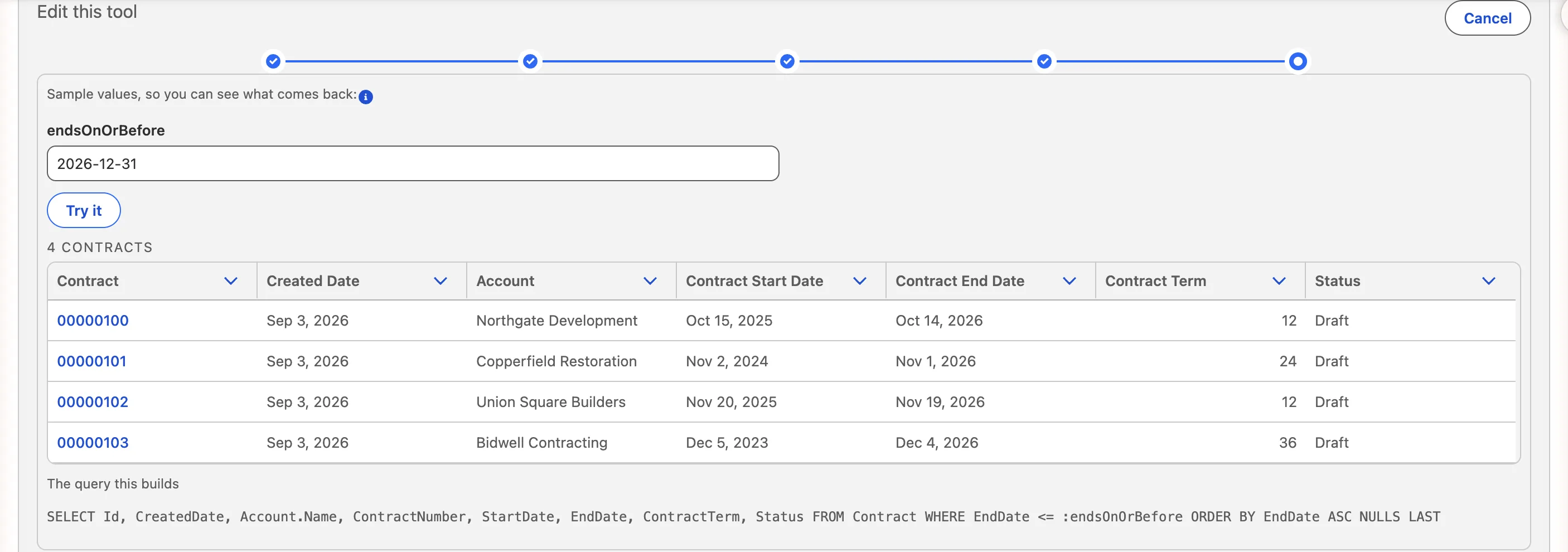
“Try it” runs the draft as you, through the same class that will run the saved tool, so what you see in the wizard is exactly what the assistant will get, under your own permissions.
02Building a tool
Five steps, about ten minutes.
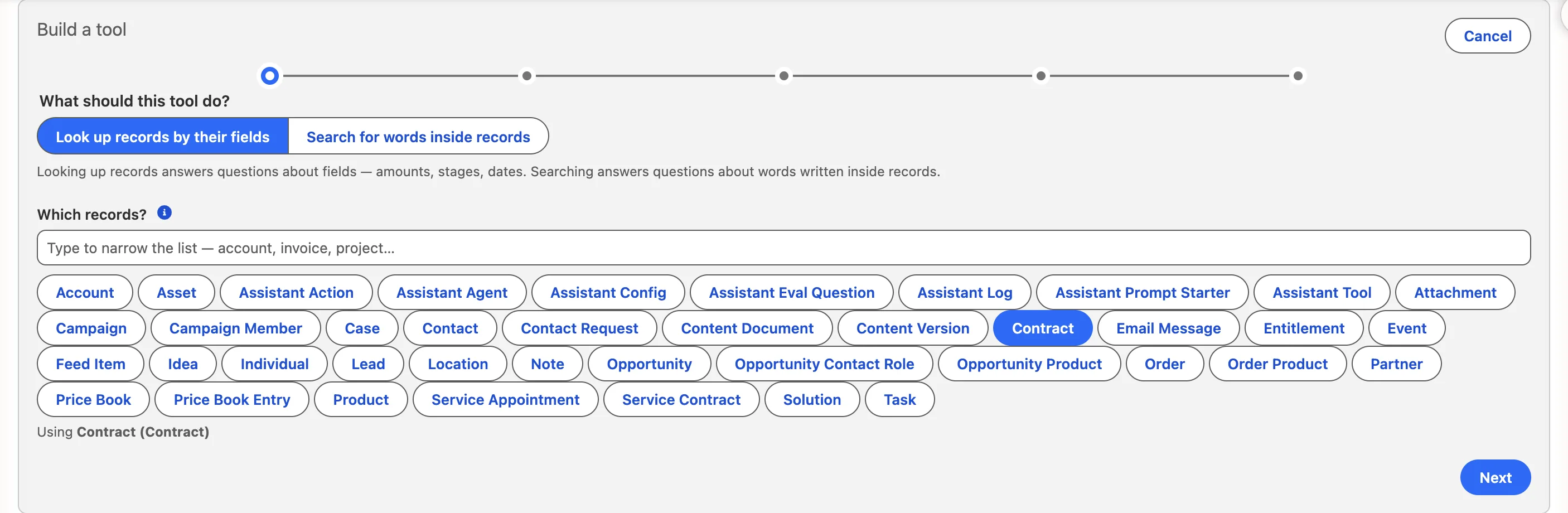
What it reads
Pick the object. Choose look up records by their fields for a query, or search for words inside records for full-text: the same two shapes every packaged tool uses.
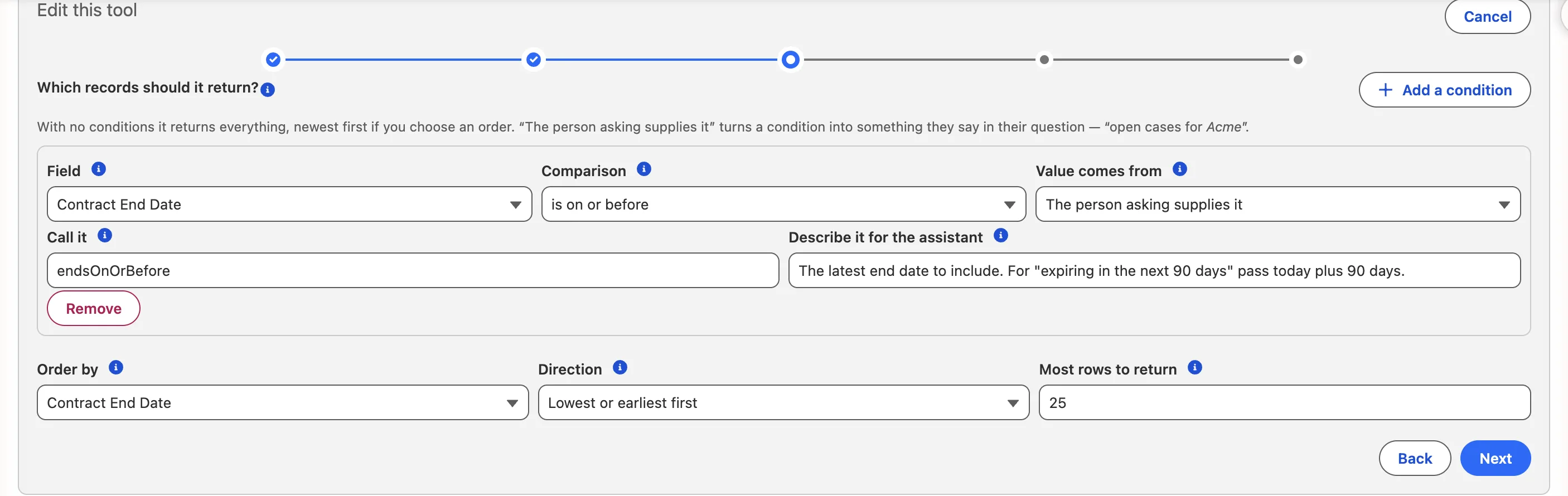
Fields
Tick the fields to return, and the one to order by: lowest or earliest first, highest or latest first. Cap the rows.
Filters
Add conditions in plain language: is · is not · contains the words · is one of · is more than · is on or after · is empty. For each value, choose whether the person asking supplies it or it is always this value. Mark a set as “required: any one of these.”
Name it
Call it, and describe it for the assistant: what should this tool do? and when should the assistant use this? That description is the prompt the model reads, and the wizard says so. Decide who may use it (everyone, or holders of a permission set) and whether it appears only on one object's record page.
Preview
Try it with real values, as yourself. Then save. It is live in the assistant immediately, listed under Settings → Tools like any packaged tool, and switchable off in one click.
03Agents
Bundle tools into a desk with its own tone.
An agent is a named set of tools plus instructions: a “Renewals desk” that only sees renewal tools and speaks to account managers, a “Support triage” agent for the service floor. People pick the agent; the boundary is unchanged, because an agent can only use tools that already exist.
Name it
A name and a one-line tagline people will see.
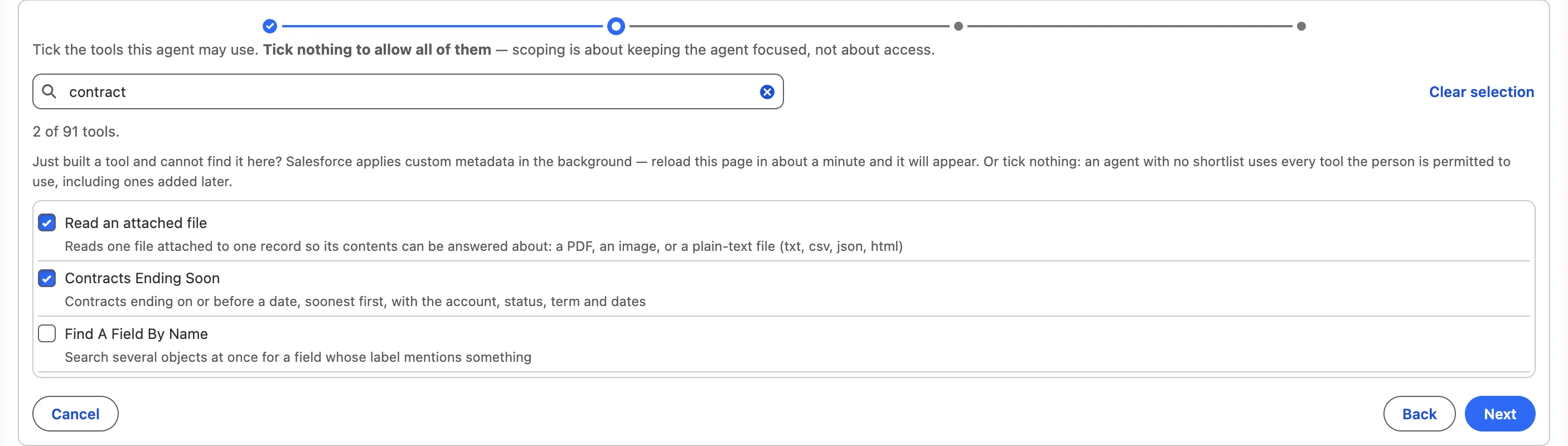
Choose its tools
From a searchable catalogue of every tool in the org, packaged and yours, showing the description the model itself reads.
Instructions
Guidance for the model, added after the shipped system prompt. Tone, priorities, what to ask before answering.
Review
Check it, switch it on, save.
Your own actions
The same surface registers an Autolaunched Flow you wrote as an action. Pick the object, find the Flow, name it, say when the assistant should use it, write the plain-language confirmation the person will read, mark what is required of the model, and decide who may use it.
- It takes one record id. A Flow declaring a collection is refused, at registration and again at runtime.
- OrgGenius verifies the person can see the record before the Flow runs. Flows run in system mode and will not do that for you.
- Drafted, shown in full, confirmed, like every other action. The draft is held server-side.
- A single-record update Flow is allowed. A delete Flow never is.
04What it cannot do
By design, not by policy.
No free-text SOQL
There is no box to type a query in. Every clause comes from a control with a whitelist behind it.
No writes from a tool
A tool is a SELECT or a FIND. The wizard has no path that produces an insert, update or delete.
No sets
Actions take one record id. “Update all my opportunities” has no expressible form.
No privilege
Tools run as the asker, in user mode. Building one grants nobody access to anything they could not already open.
05Licensing
Included. Not an add-on.
Agent Builder is in the base licence at every tier. A consultant at $150–250 an hour builds one custom tool in a day or two; your admin builds it in an afternoon without filing a ticket. Everything the tools produce (the answers, the citations, the audit log) is there for everyone.