 OrgGenius
Guide for Salesforce admins
Why can't a user see a record in Salesforce?
Almost always one of seven causes, and Salesforce evaluates them in a fixed order. Work down this list in the same order and you will find it in minutes, without guessing and without handing out View All to make the ticket go away.
01Before you start
Get the yes or no first.
Two facts save most of the hour. First, confirm the user really cannot see the record, rather than cannot find it. A list view filtered to “My” records, a search index a few minutes behind, or a record sitting in the Recycle Bin all look like an access problem and are not.
Then ask Salesforce directly. The UserRecordAccess object answers for any user and any record, and it accounts for every sharing route at once:
SELECT RecordId, HasReadAccess, HasEditAccess, MaxAccessLevel
FROM UserRecordAccess
WHERE UserId = '005...' AND RecordId = '006...'
If HasReadAccess is true, stop looking at sharing: the problem is a list view, a layout, a field or the app. If it is false, work down the checklist.
Two screens worth knowing
- Sharing Hierarchy. On the record, open Sharing, then View Sharing Hierarchy. It lists everyone with access and the reason for each: owner, role hierarchy, a named sharing rule, a team, a manual share.
- User Access Summary. On the user's detail page in Setup, View Summary shows their object, field and system permissions in one place, and which profile or permission set grants each one.
UserRecordAccess tells you whether. Sharing Hierarchy tells you why others can. Neither tells you why this user cannot, which is what the checklist is for.
02The checklist
Seven checks, in the order Salesforce applies them.
Object permission: can they read this kind of record at all?
A user needs Read on the object from their profile or a permission set. Without it nothing below matters: a sharing rule cannot show an Opportunity to someone with no Opportunity access. Check the licence too. A Salesforce Platform licence, for example, cannot reach Opportunities or Leads whatever the profile says.
Fix: a permission set that grants Read on the object. Avoid editing the profile; it changes everyone who shares it.
Org-wide default: is the object private?
In Setup, Sharing Settings, find the object's default internal access. If it is Public Read Only or Public Read/Write, every user with object Read sees every record, and sharing is not your problem. If it is Private, or Controlled by Parent with a private parent, access has to be opened by one of the routes below.
Ownership and the role hierarchy
The owner sees the record. So does everyone above the owner in the role hierarchy. Not peers, and not anyone in another branch. Two people with the same role do not see each other's private records. Check the owner's role and the user's role, and whether one sits above the other. On custom objects, also check that Grant Access Using Hierarchies is on.
Common cause: the record owner has no role, or the user was moved to a different branch in a reorganisation.
Sharing rules and groups
Owner-based rules share records owned by one group of users with another. Criteria-based rules share records that match field values. Either can target a public group, a role, or a role and its subordinates. Check whether a rule should cover this record, whether the record actually meets its criteria, and whether the user is really in the target group, including nested groups.
Common cause: a criteria-based rule keyed on a field value that changed, so the record quietly fell out of the rule.
Teams, manual shares and implicit access
Account, opportunity and case teams grant access record by record. So do manual shares, which disappear when the record changes owner. Access to a child record gives read access to its parent account, and the owner's role can grant access to an account's contacts, opportunities and cases. With territory management on, territory assignment is another route.
Common cause: the owner changed last week, and the manual share that used to cover this user went with it.
Restriction rules: the route that takes access away
Everything above adds access. Restriction rules subtract it: a user who would otherwise see a record is limited to the records matching the rule's criteria. If sharing says yes and the user still cannot see the record, look under the object's Restriction Rules in Object Manager. They are easy to forget because they sit outside Sharing Settings.
The record is visible, but something on it is not
If the user can open the record but a field, a related list or a button is missing, that is not sharing. A missing field is field-level security or the page layout. A missing related list is usually no Read on the related object. Record types are not a visibility control at all: they decide layouts, picklist values and what a user can create, not what they can see.
03Choosing the fix
Grant the smallest thing that answers the ticket.
Missing object access
A permission set, assigned to the user or a permission set group. Not a profile edit, and not a clone of someone else's profile.
Missing record access
Team membership for one record. A sharing rule when the same request will come again for the same kind of record. A role change only when the org chart really changed.
What not to reach for
View All on the object, or View All Data. Both bypass sharing for every record, which closes this ticket and opens an audit finding. If many users hold them already, that is its own clean-up.
04Questions that come up
Short answers.
Can a sharing rule give access to a user without Read on the object?
No. Object permission comes first. A user needs Read on the object, from their profile or a permission set, before any sharing rule, team membership or manual share can show them a record. Sharing opens records only within the object access the user already has.
Do record types control who can see a record?
No. Record types control which page layout, picklist values and business process a user gets, and which record types they can create. A user who lacks a record type can still see records of that type if sharing allows it.
What is the fastest way to check why a user can or cannot see one record?
Query UserRecordAccess for the user id and record id to get the yes or no, then open Sharing Hierarchy from the record's Sharing button to see every user with access and the reason for each.
The user can open the record but a field is missing. Is that sharing?
No. That is field-level security or the page layout. Sharing decides which records a user sees. Field-level security decides which fields on those records. Check the field's access on the user's profile and permission sets.
Should I fix it by granting View All?
Rarely. View All on an object bypasses sharing for every record of that object, which is usually far more than the request needs. Prefer a permission set for a missing object permission, and a sharing rule or team membership for a missing record.
05Or ask the org
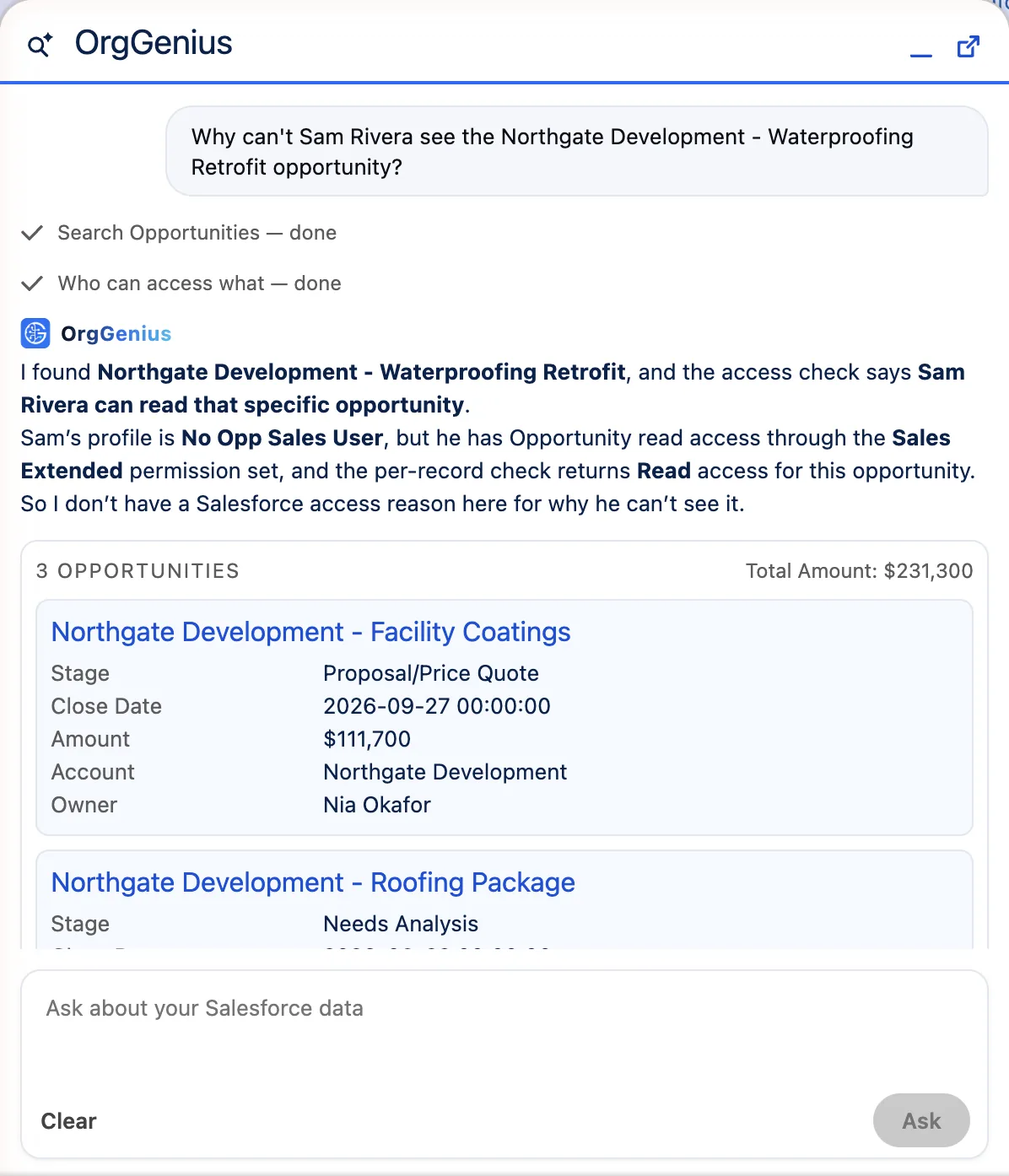
This checklist is one question in OrgGenius.
We build an AI assistant that lives in the Salesforce utility bar, and this is the question it was built to answer for admins. Ask “why can't Sam see this opportunity?” and it walks the routes above: profile, permission sets, groups, View All and Modify All, then the per-record result, and it names what would fix it. It cites the user, the permission set and the record so you can open each one.
It reads, under your own permissions, and changes nothing. You still make the fix. What else it does for admins